
User guide
1 FUNCTIONAL PURPOSE
The purpose of the computer program is to implement a training and testing algorithm that identifies similar objects from a target array, which is formed depending on the topic of training or testing. For example, power plants, substations, and other objects in the electric power industry.
2 ALGORITHM STRUCTURE
The computer program algorithm is implemented using the following modules:
- output array module;
- target array module;
- base module;
- results accumulation module;
- results output module.
3 PROGRAM IMPLEMENTATION CONDITIONS AND MINIMUM COMPOSITION OF TECHNICAL EQUIPMENT
The technical equipment must include an IBM-compatible personal computer (PC), which includes:
- processor with a clock frequency of at least 800 MHz;
- RAM capacity of at least 512 MB;
- free disk space of at least 20 MB;
- SVGA monitor with a resolution of at least 1024 × 768;
4 PROGRAM EXECUTION
4.1 Downloading and running the program
The program is launched by opening the professional.exe file.
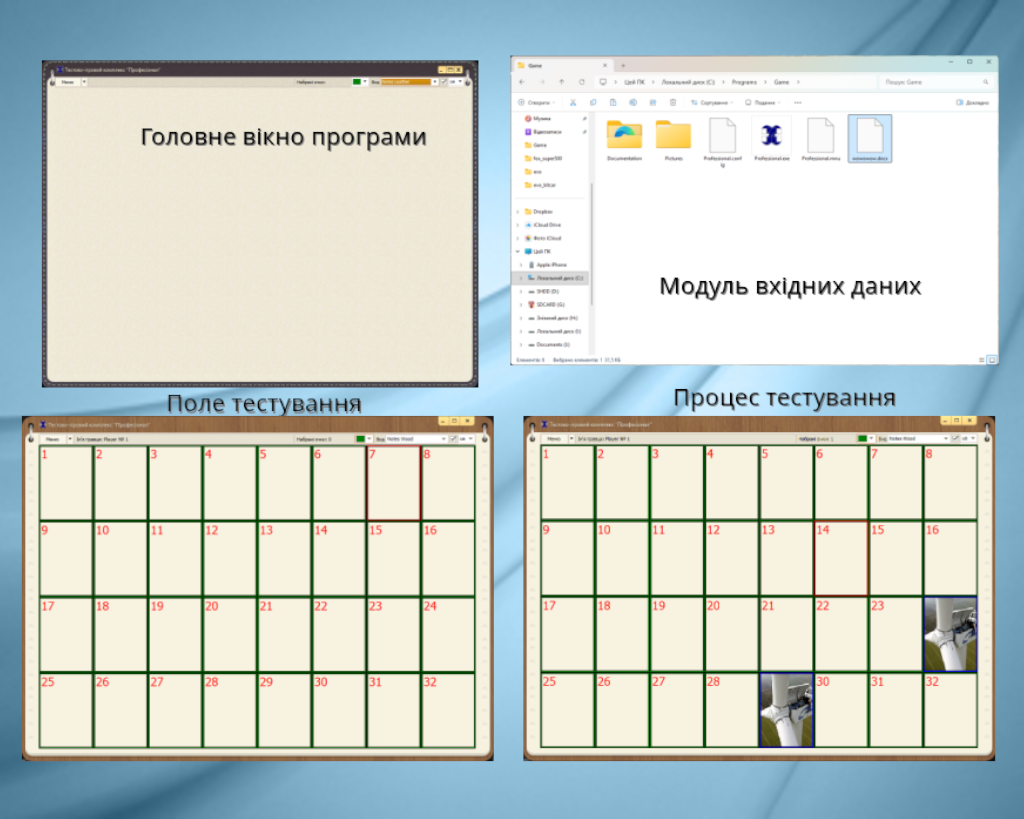
If the program is launched successfully, the main program window will appear on the desktop. The main window menu includes the "Game" and "Settings" menu items, which are used to control and select testing parameters.
4.2 Main program modules
The source data module consists of a Pictures folder that contains subfolders for the main training or testing topics. Access to the folder information is carried out using the file explorer. This module is formed from the source data module according to the topic of training or testing. The module objects must have the format of a regular bitmap image.
The module for accumulating and displaying results consists of a procedure for processing events of the graphic pointer (mouse) and provides the ability to evaluate the results of a single move. Successful moves are recorded and remembered. After the game is completed, the test result is displayed on the screen.
4.3 Closing the program
Exiting and closing the program is possible from the main program window in one of the following ways:
- by pressing a keyboard shortcut «Alt+F4»;
- by pressing a button [×].
- by calling the item «Menu» > «Exit»;